
Fixing Error Messages
This article discusses troubleshooting steps when receiving error messages in ImagineTime.
Note: If you receive an Error Number as part of the message, the steps to fix these errors can be found in the Correcting Error Numbers article.
Error Messages
The following error messages can be encountered in ImagineTime:
- Error Message: Microsoft Access is in an unrecognized data format – The data base may have been updated with later version than the one you are using…
- This indicates that the incorrect version of ImagineTime has been installed. Contact Mango Support and request the ImagineTime installer, then re-install the application. Information on this process can be found in the Installing ImagineTime article.
- Error Message: The changes you requested to the table were not successful because they would create duplicate values in index, key or relationship
- This message can occur when entering time and indicates that the time slip being entered may have a duplicate a time slip number. To prevent this, change the used slip number.
- On the Setup / Utilities ribbon, click Company Setup.
- Select the Closing/Counters
- Increase the value in the Last Slip ID # and Last Admin Slip ID fields by 10.
- Close the Company Information/Setup window and attempt to enter the time slip again.
- Error Message: File size not the right size
…or…
Error Message: Cannot initialize installation file, size equals 493 - These messages can occur when trying to install ImagineTime, and can occur if there are issues downloading the installer, such as when network communication is interrupted. This can also occur if the file was saved on top of another downloaded file, causing it to become corrupted. Delete the installer, contact Mango Support and request a new ImagineTime installer, then re-install the application. Information on this process can be found in the Installing ImagineTime article.
- Error Message: Class A Sync ERROR
…or…
Error Message: Class A Sync MDEVER – open command - This message occurs when starting ImagineTime, and generally indicates that the incorrect installation was performed (e.g., a full instead of workstation installation). Contact Mango Support and request the ImagineTime installer, then re-install the application. Information on this process can be found in the Installing ImagineTime article.
This message can also indicate that an antivirus application is blocking a required service. Contact your network administrator to verify that your firewall is not blocking Microsoft SQL communication.
- Error Message: MSO DATA BASE ENGINE Can’t find M_System.MDB – Icon no longer pointing towards Sage Key
- This message occurs when starting ImagineTime, and generally indicates an issue with the installation. Contact Mango Support and request the ImagineTime installer, then re-install the application. Information on this process can be found in the Installing ImagineTime article.
- Error Message: READ ONLY: this data base has been opened in read only.
- This message can occur when starting ImagineTime, and indicates you haven opened the database file in Microsoft Access directly. Database changes can only be made when ImagineTime is opened correctly. Exit Access and start ImagineTime.
- Error Message: Windows can’t access the specified file or path…sagekey…. start access.
- This message can occur when starting ImagineTime, and indicates potential network issues. Open the Database Path using Windows Explorer. If the contents of the folder are displayed, restart ImagineTime and try again. If the problem persists, contact your network administrator to troubleshoot your network connection.
- Error Message: Windows can’t access the specified file or path
- This message can occur when starting ImagineTime, and indicates that you may not have appropriate permission to access the file or path. Contact Mango Support and request the ImagineTime installer, then re-install the application. Information on this process can be found in the Installing ImagineTime article. If the problem persists, contact your network administrator to troubleshoot your permissions.
- Error Message that includes “Capture Users”
- This message can occur when starting ImagineTime, and indicates that the number of users in ImagineTime cannot be determined. This typically indicates that you may not have appropriate permission to access the file or path. Contact your network administrator to troubleshoot your permissions.
- Error Message: Index or primary key cannot contain null value
- This message can occur when entering an After-the-Fact time entry, and can indicate that the Slip ID is invalid.
- On the Setup / Utilities ribbon, click Company Setup.
- On the Closing/Counters tab, locate the Last Slip ID.
- If this value is zero or blank, enter the last slip entered.
- If this value is not zero, or you cannot locate the last slip number used, contact Mango Support for additional assistance.
- Error Message: You must link your database
- This message can occur when logging in to ImagineTime the first time after rebooting the workstation, and indicates that the application is not able to elevate Windows requests. This typically occurs if the program is running in compatibility mode.
- Right-click on the shortcut for Microsoft Access, select Properties, and click Open File Location.
- Right-click on MSACCESS.EXE and select Properties.
- On the Compatibility tab, clear the Run this program in compatibility mode check box.
- Click OK.
If this message persists, contact Mango Support for additional assistance.
- Error Message: You have to operate this on the machine it was originally installed on.
- This message can occur when logging in to ImagineTime, and indicates that ImagineTime was incorrectly moved from one computer to another. Contact Mango Support for assistance.
- Error Message: If you are reinstalling the software click and copy the Tbdata file into the ImagineTime directory before continuing.
- This message can occur when logging in to ImagineTime when using some workstations. Generally this can be bypassed by running ImagineTime as an administrator and completing the registration process.
- Click OK to close the message.
- Right-click on the ImagineTime shortcut and select Run as administrator.
- On the Setup / Utilities ribbon, click Company Setup.
- Click Process Registration.
- Close the application and restart ImagineTime normally.
If this message persists, contact Mango Support for additional assistance.
- Error Message: Function is not available in expression, query expression
- This message can occur in multiple locations, and may indicate that features in the application are blocked. This can happen as the result of unexpected add-ins or spyware. Contact Mango Support and request the ImagineTime installer, then re-install the application. Information on this process can be found in the Installing ImagineTime article.
- Error Message: Custom UI Runtime Error
- This message can occur when logging in to ImagineTime if Access is configured to display user interface errors.
- Close ImagineTime.
- Open Microsoft Access in designer mode.
- Click the Office button and select Access Options.
- Click Advanced, and scroll down to the General category.
- Clear the Show add-in user interface errors check box.
- Close Access and restart ImagineTime.
If you cannot open Microsoft Access in designer mode (e.g., if Access Runtime is installed but a full version of Access is not), the following registry entries can be modified instead.
Caution: Editing the Windows registry is typically not recommended because of potential problems that can occur when not done properly. Mango is not responsible for edits made to the registry. Any registry changes should be made by your network administrator or a qualified professional
- Close ImagineTime
- Click the Start button and then open Registry Editor.
- In path “Computer\HKEY_CURRENT_USER\Software\Microsoft\Office\12.0\Common\General”, locate the key “ReportAddinCustomUIErrors”.
- Right-click and select Modify.
- Change Value data to 0 (zero).
- Click OK, then close the Registry Editor. Click Yes if prompted to save.
- Restart ImagineTime and verify the error message is no longer reported.
If this message persists, contact Mango Support for additional assistance.
- Error Message: The property ImagineTime Key is unknown
- This message can occur is the Calendar screen, and will result in ImagineTime closing. This generally means that Microsoft Outlook cannot communicate with ImagineTime. Try the following steps:
- Turn off active synchronization.
- Start ImagineTime.
- On the Calendar / Due Dates ribbon, click Staff Appointments and Tasks.
- Click Sync Outlook.
- Change Auto-Sync Options for Appts & Tasks when working in Imaginetime to “No Active Sync.”
- Close Outlook Synchronzation, restart ImagineTime and attempt to open the Calendar again. If the error persists, try:
- Repair and compact.
- Have all users exit ImagineTime.
- On the Setup / Utilities ribbon, click General Utilities.
- On the Repair Utilities tab, click Repair/Compact Database & Exit.
- When the process completes, start ImagineTime and attempt to open the Calendar again. If the error persists, try:
- Use the repair option on Outlook.
- Click the Start button and then click Settings.
- Click Apps to open the Apps & features window.
- Select “Microsoft Outlook” and click Repair.
- When the process completes, start ImagineTime and attempt to open the Calendar again. If the error persists, try:
- Log in as another user.
- Start ImagineTime and log in as a different user.
- Attempt to open the Calendar again. If the error persists, try:
- Log in on another workstation.
- Start ImagineTime on another workstation and log in with your user.
- Attempt to open the Calendar again. If the error persists, try:
- This indicates possible data corruption. Contact Mango Support for assistance. It may be necessary to revert to backup file.
- Turn off active synchronization.
- Error Message: SPELLING PERMISSION
- This message can be shown in multiple locations, and indicates that ImagineTime cannot access the Wintertree spelling library files.
- Close ImagineTime
- Open Windows Explorer to “C:\Program Files (x86)\Common Files\Wintertree”.
- Right-click on the Spelling folder and select Properties.
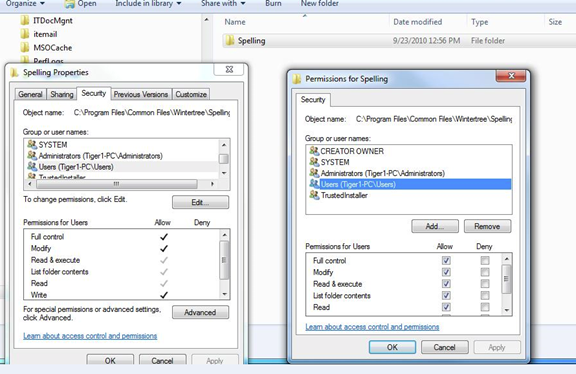
- On the Security tab, select Users and make sure Full control is set to “Allow.”
If this message persists, contact Mango Support and request the Spell Check Fix Utility. An email will be sent to you containing the necessary files. Download the SPELLFIX.ZIP file and extract the contents to your desktop. Right-click on the SPELLFIX.REG file and select Run as administrator. When the process is complete, reboot the workstation. If this message persists, contact Mango Support for additional assistance.
- Error Message: DAO ERROR IN APPLICATION REFERENCES
- This message can occur when logging in to ImagineTime, and generally indicates that Microsoft Access 2010 or prior is installed. ImagineTime requires the Microsoft Access Runtime 2013, which cannot be used at the same time as Access 2010 or prior. Uninstall ImagineTime and Microsoft Access 2010 or prior, then contact Mango Support, request a new ImagineTime installer, and re-install the application. Information on this process can be found in the Installing ImagineTime article. This will install the correct Microsoft Access Runtime 2013 files.
Note: Extended support for Microsoft Access 2010 ended 10/13/2020. As these versions are no longer supported by Microsoft, we do not recommend using these versions. We may not be able to provide support if problems are associated with a discontinued application.
If this message persists, contact Mango Support for additional assistance.
- Error Message: Start access unable to find Access 2007 runtime
- This message can be displayed when starting ImagineTime, and generally indicates that the Microsoft Access Runtime 2013 application cannot be found. Contact Mango Support and request the ImagineTime installer, then re-install the application. Information on this process can be found in the Installing ImagineTime article. This will install the correct Microsoft Access Runtime 2013 files. If you have any questions about your installation, contact Mango Support for assistance.
- Error Message: Run Time Platform Conflict
- This message can be displayed when starting ImagineTime, and generally indicates that an invalid registry entry is causing errors with the application. Run time errors generally do not cause the application to stop working, so you may be able to continue using ImagineTime. However, we recommend you contact Mango Support and request the ImagineTime installer, then re-install the application. Information on this process can be found in the Installing ImagineTime article.
- Error Message: C:\Windows\System32\taemailer.exe could not be opened. Please check that your disk is not full and that you have access to the destination directory. Access is denied.
- This message can occur when trying to update ImagineTime, and can indicate a locked process.
- Reboot your workstation, then try updating again.
- If the error persists, contact Mango Support and request the Email Blaster Utility. An email will be sent to you containing the necessary files.
- Download the TAEmailR.ZIP file and extract the contents to C:\Windows\SysWOW64.
- When the process is complete, try updating again.
If this message persists, contact Mango Support for additional assistance.
- Error Message: Demo Mode
- This message can occur when starting ImagineTime, and generally indicates that a demo version of the software was installed. Contact Mango Support and request the ImagineTime installer, then re-install the application. Information on this process can be found in the Installing ImagineTime article.
If necessary, you can bypass this message temporarily by editing the table manually in Microsoft Access.
- Exit ImagineTime and start Microsoft Access.
- Open TB2013.MDE from the Database Path.
- Load the DBVersion table.
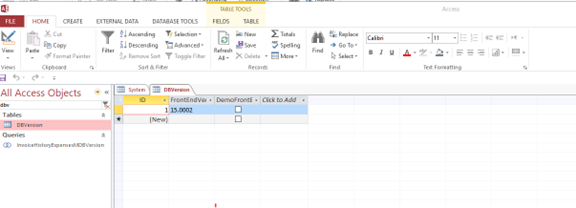
- Clear the check box in the DemoFrontEnd column.
- Exit Microsoft Access and start ImagineTime.
If this message persists, contact Mango Support for additional assistance.
- Error Message: ActiveX Error <#>
- These messages can occur when starting ImagineTime and indicates an issue with an installed component.
General Troubleshooting
- Click the Windows Start menu, select Settings, and open Updates & Security. If any pending actions are shown (e.g., “Reboot to install updates”, “Click to install updates”, etc), perform those actions. If installing Windows Updates, be sure to reboot.
- Start ImagineTime. Click the File menu and select About ImagineTime. Verify that all items in the Application References table have a checkmark in the OK? column.
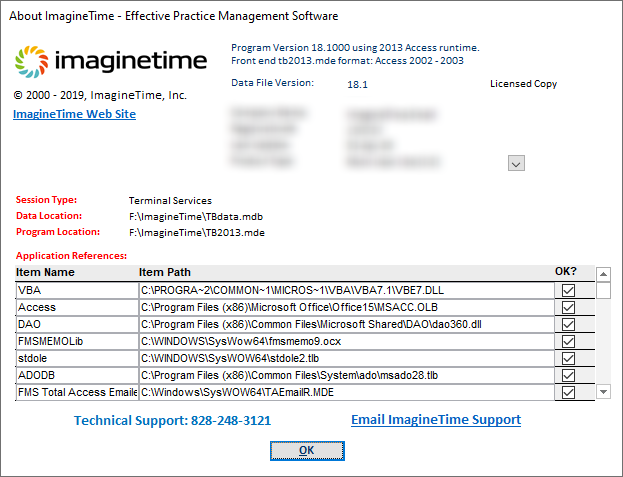
- If the errors persist, or any items in step 2 do not show as OK, contact Mango Support and request the ImagineTime installer, then re-install the application. Information on this process can be found in the Installing ImagineTime article.
ActiveX Error 429: ActiveX component cannot create object
This error message indicates that a required DLL file could not be registered. If this error persists after the general troubleshooting, above, you can manually register the file.
- In Windows Explorer, open C:\Windows\System32.
- Right-click on SCRRUN.DLL and select Open with…
- Click Show Apps, scroll to the bottom of the list, and click Look for another app on this PC.
- Browse to C:\Windows\System32, select REGSRVR32.EXE, and click Open.
- When the registration is complete, restart the workstation.
Additional information about this error can be found at http://forums.augi.com/showthread.php?9484-Scripting-FileSystemObject-Runtime-Error.
Alternatively, this can be caused if the database file cannot be located.
- Close ImagineTime.
- Open the Database Path in Windows Explorer.
- Right-click on TBDATA.MDB and select Copy.
- Browse to C:\Program Files\ImagineTime and press Ctrl+V to paste the file.
- Open ImagineTime.
- On the Setup / Utilities ribbon, click General Utilities.
- On the General Utilities tab, click Re-link Database & Exit.
- Specify the Database Path and click OK.
ActiveX Error 429: ModUtility.th Capture User
This indicates possible data corruption. Contact Mango Support for assistance. It may be necessary to revert to backup file.
- Error Message: Could not use C:\ProgramFile\ImagineTime\TBdata.mde – file already in use
- This message can occur when opening ImagineTime using Terminal Services, and indicates that the update was installed incorrectly, or the workstation installation failed to update the registry. You can have your network administrator reinstall ImagineTime on the Terminal Service workstation, or the following registry entries can be modified instead.
Caution: Editing the Windows registry is typically not recommended because of potential problems that can occur when not done properly. Mango is not responsible for edits made to the registry. Any registry changes should be made by your network administrator or a qualified professional
- Close ImagineTime.
- Click the Start button and then open Registry Editor.
- In path “Computer\HKEY_LOCAL_MACHINE\Software\WOW6432Node\ImagineTime, Inc\ImagineTime”, locate the key “CmdLine”.
- Right-click and select Modify.
- Remove the text “/excl” from the Value data.
- Click OK, then close the Registry Editor. Click Yes if prompted to save.
- Restart ImagineTime and verify the error message is no longer reported.
If this message persists, contact Mango Support for additional assistance.
- Error Message: The active content in this file is blocked. Review your Trust Center settings or contact your IT administrator.
- This message can occur when opening ImagineTime, and is usually accompanied by a Security Warning at the top of the application. This indicates that security settings are configured to block functions that are required for ImagineTime.

- Close ImagineTime and open Microsoft Access.
- Click Options, select the Trust Center tab, and click Trust Center Settings.
- On the ActiveX Settings tab, select Enable all controls.
- On the Macro Settings tab, select Enable all macros.
- Click OK to close the Trust Center, then click OK to close Access Options.
- Close Microsoft Access and re-open ImagineTime.
If this message persists, contact Mango Support for additional assistance.
Learn More
The following knowledge base articles contain additional information relating to errors in ImagineTime: