
Installing ImagineTime
This article discusses installing ImagineTime to a new server or workstation.
Adding a Workstation
There are two sets of instructions for if you are adding a workstation: one for if you have 32-bit Office 365, and one for if you do not have 32-bit Office 365.
If you do not have Office 365
Installing ImagineTime
Contact Mango Support and request the ImagineTime runtime installer. ImagineTime will send you the SetupImagineTime2013.exe file.
- Save the SetupImagineTime2013.exe file to your desktop.
- Right-click the SetupImagineTime2013.exe and select Run As Administrator.
- When prompted if you want to allow this app to make changes to your device, click Yes.
- You will be prompted to install ImagineTime components. Click Install.
- On the Welcome window, click Next.
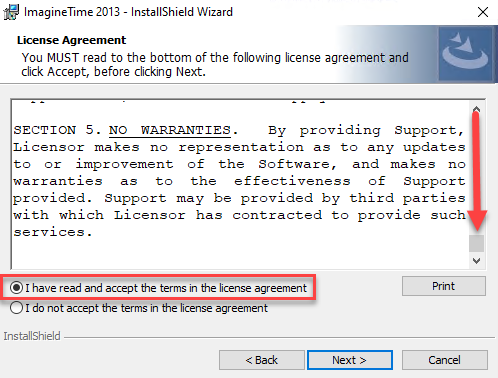
- On the License Agreement window, scroll to the bottom, select I have read and accept the terms of the license agreement, and click Next.
- On the Select the program features you want installed window, click the red X next to Workstation Module for local workstation and select This feature will be installed on local hard drive. Click Next.

- Once ImagineTime finishes installing, click Finish.
- Microsoft Access Runtime 2013 will now be installed.
Linking ImagineTime
Once ImagineTime has been installed on the new workstation, you must link to the data file on the server.
- Open ImagineTime.
- You will be prompted to link ImagineTime to the current location of the TBdata.mdb file. Click OK.
- On the Utility to relink Tbdata.mdb file window, click Browse for file location, and browse to the ImagineTime folder on your server. Select the TDdata.mdb file on your server and click Open.
- On the Utility to relink Tbdata.mdb file window, click OK.
- On the Refresh Links window, click OK to link to the selected TBdata.mdb file.
- On the Refresh Links, Linking Completed, window, click OK.
You can now open ImagineTime and start working.
If you have Office 365
Note: ImagineTime does not work on 64-bit Office 365.
Installing ImagineTime
Contact Mango Support and request the ImagineTime installer for Office 365. ImagineTime will send you the SetupImagineTime2016.exe file.
- Save the SetupImagineTime2016.exe file to your desktop.
- Right-click the SetupImagineTime2016.exe and select Run As Administrator.
- When prompted if you want to allow this app to make changes to your device, click Yes.
- You will be prompted to install ImagineTime components. Click Install.
- On the Welcome window, click Next.
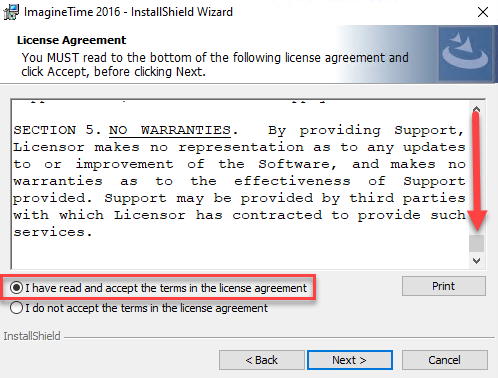
- On the License Agreement window, scroll to the bottom, select I have read and accept the terms of the license agreement, and click Next.
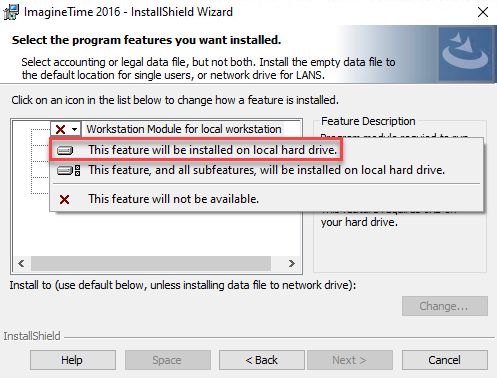
- On the Select the program features you want installed window, click the red X next to Workstation Module for local workstation and select This feature will be installed on local hard drive. Click Next.
- Once ImagineTime finishes installing, click Finish.
Linking ImagineTime
Once ImagineTime has been installed on the new workstation, you must link to the data file on the server.
- Open ImagineTime.
- On the Refresh Links window, click Cancel to browse for the file location.
- On the Utility to relink Tbdata.mdb file window, click Browse for file location, and browse to the ImagineTime folder on your server. Select the TDdata.mdb file on your server and click Open.
- On the Utility to relink Tbdata.mdb file window, click OK.
- On the Refresh Links window, click OK to link to the selected TBdata.mdb file.
- On the Refresh Links, Linking Completed, window, click OK.
You can now open ImagineTime and start working.
Terminal Services Installation
Call Mango Support and request the ImagineTime installer for Terminal Services. Support will walk you through the install process.
Frequently Asked Questions
- We installed Microsoft Office, and ImagineTime no longer works. How can we fix this?
- Installing Office after ImagineTime has been installed will prevent the Access Runtime from working. Contact Mango Support and request the full ImagineTime installer (SetupImagineTime2016.exe), then follow the instructions above to install the application.
Note: Installing Office on your server will not impact the ImagineTime installation on a workstation, unless you are using the same server for both ImagineTime and Terminal Services. Contact Mango Support if you have questions about your installation.
Learn More
The following knowledge base articles contain additional information about installing ImagineTime: