
Correcting Error Numbers
This article discusses troubleshooting steps when receiving a numbered error message in ImagineTime.
Note: If you receive an error without an Error Number, the steps to fix these errors can be found in the Fixing Error Messages article.
Error Numbers
The following numbered error messages can be encountered in ImagineTime:
- Error 5: Invalid procedure call or argument.
- This message can be shown when running Due Date or Detail WIP reports with color, and indicates an issue with the printer. To correct this, update the printer’s driver in Windows, or switch to a different printer.
- Error 6: Overflow
- This message can be shown when client balances will not update. Contact Mango Support for assistance.
- Error 8: Mod Utility – Checking for Update – Cannot download the info you requested.
…or…
Error 11: Microsoft Access – Copy URL File Error: 11 Division by Zero - This message can be displayed when ImagineTime is unable to check for an update, generally because of an issue with the workstation’s firewall. Contact Mango Support and request the ImagineTime installer, then re-install the application. Information on this process can be found in the Installing ImagineTime article.
- Error 13: Type Mismatch
- If this message is displayed when opening Due Date Deadline, it can indicate one of two issues:
- The Options contains invalid parameters in Options for Deadline dates. Make sure these settings have valid date options, then try to open the Due Date again.
…or… - The data file needs to be updated.
- Have all users exit ImagineTime.
- On the Setup / Utilities tab, click General Utilities.
- On the General Utilities tab, click Update data file to installed program version.
- When the process is complete, try to open the Due Date again.
If this message is displayed when opening Calendar, typically this means that Options are not configured for the calendar; such as Prime Start & End Times. Make sure that these settings are not blank, then try to open the Calendar again.
If this message persists, contact Mango Support for additional assistance.
- The Options contains invalid parameters in Options for Deadline dates. Make sure these settings have valid date options, then try to open the Due Date again.
- Error 48: Error in loading DLL
- This message indicates an issue with the installed application. Uninstall the ImagineTime and Microsoft Access Runtime software, contact Mango Support and request the ImagineTime installer, and then re-install the application. Information on this process can be found in the Installing ImagineTime article.
- Error 52: Bad file name or number
…or…
Error 53: File not found - These messages typically indicate that the path to the application or data file is invalid. Verify that the ImagineTime application is installed and that the shortcut is attempting to launch the correct database.
If this message persists, contact Mango Support for additional assistance.
Note: We strongly recommend that the ImagineTime application be installed to a unique folder on the C: drive, so that the data file is not protected and the application and database links work without any changes required.
- Error 70: Permission Denied
.
- This message is displayed when trying to back up the ImagineTime data file via the General Utilities window. This can indicate one of two issues:
- A user is still in the ImagineTime application. Have all users exit ImagineTime and try to start the backup again.
…or… - The ImagineTime data file has been marked read-only, or it is stored in a restricted location (such as the Windows or My Documents folders). Move the database folder to a unique folder on the C: drive, verify that it is not read-only, and update the ImagineTime settings to use the new location.
If this message persists, contact Mango Support for additional assistance.
- A user is still in the ImagineTime application. Have all users exit ImagineTime and try to start the backup again.
- Error 91: Null Value
…or…
Error 94: Null Value - This message can be displayed when a file is being exported, and indicates an option is missing or invalid. Use the following steps to update the data file.
- Have all users exit ImagineTime.
- On the Setup / Utilities ribbon, click General Utilities.
- On the General Utilities tab, click Update data file to installed program version.
When the process is complete, try to export the file again. If this message persists, contact Mango Support for additional assistance.
- Error 94: Invalid Use of Null
- This message can be displayed in the Calendar window, and indicates an error in the ImagineTime application. Contact Mango Support and request the ImagineTime installer, then re-install the application. Information on this process can be found in the Installing ImagineTime article.
If necessary, you may be able to bypass this message by editing the table manually in Microsoft Access.
- Exit ImagineTime and start Microsoft Access.
- Open TB2013.MDE.
- Load the CBWSCALVIEW table.
- Edit the SQL query “Select * From BWSCalSys”.
- In the CalView column, if any record is blank, change it to 1.
- Exit Microsoft Access and start ImagineTime.
- Error 429: ActiveX component can’t create object
- This error message indicates that a required DLL file could not be registered. If this error persists after the general troubleshooting, above, you can manually register the file.
- In Windows Explorer, open C:\Program Files\Common Files\System.
- Right-click on REDEMPTION.DLL and select Open with…
- Click Show Apps, scroll to the bottom of the list, and click Look for another app on this PC.
- Browse to C:\Windows\System32, select REGSRVR32.EXE, and click Open.
- When the registration is complete, restart the workstation.
If you are unable to locate the REDEMPTION.DLL file, contact Mango Support and request the Outlook Email Integration Tool. An email will be sent to you containing the necessary files. Download the REDEMPTION.ZIP file and extract the contents to C:\Program Files\Common Files\System, then follow the above instructions to register the REDEMPTION.DLL file.
- Error 459: Object or class does not support the set of events
- This message often occurs along with Error 2501 when opening Manage/Edit Deadlines, and indicates the control for gauge not installed.
- Exit ImagineTime.
- Contact Mango Support and request the ActiveX Upgrade Utility. An email will be sent to you containing the necessary files.
- Download the UPGRADEXCONTROLS.EXE file.
- In Windows Explorer, right-click on the UPGRADEXCONTROLS.EXE file and select Run as administrator.
- When the process is complete, close the Command Prompt, start ImagineTime and open the Manage/Edit Deadlines screen.
If this message persists, contact Mango Support for additional assistance.
This message can also occur when opening the After-the-Fact entry screen, and indicates a broken reference memo.
- Exit ImagineTime.
- Contact Mango Support and request the CTXReg fix. An email will be sent to you containing the necessary files.
- Download and open the CTXREG.ZIP file.
- Extract the CTXREG.BAT file to the root of your C: drive.
- Click on the Windows Start menu, search for “Command Prompt,” then right-click on the app and select Run as administrator.
- Enter “cd c:\” (without quotes) and press Enter.
- Enter “cdxreg.bat” (without quotes) and press Enter.
- When the process is complete, close the Command Prompt, start ImagineTime and open the After-the-Fact entry screen.
If this message persists, contact Mango Support for additional assistance.
- Error 1306: Application-defined or object-defined error
- This message can occur in multiple locations, and indicates that another process has an exclusive lock on the ImagineTime application.
- Close all other applications and click Retry.
- If the message persists, exit ImagineTime.
- Contact Mango Support and request the ActiveX Upgrade Utility and CTX Reg fix. An email will be sent to you containing the necessary files.
- Download the UPGRADEXCONTROLS.EXE file.
- In Windows Explorer, right-click on the UPGRADEXCONTROLS.EXE file and select Run as administrator.
- When the process is complete, close the Command Prompt, start ImagineTime and try the process again.
- If the message persists, exit ImagineTime.
- Download and open the CTXREG.ZIP file.
- Extract the CTXREG.BAT file to the root of your C: drive.
- Click on the Windows Start menu, search for “Command Prompt,” then right-click on the app and select Run as administrator.
- Enter “cd c:\” (without quotes) and press Enter.
- Enter “cdxreg.bat” (without quotes) and press Enter.
- When the process is complete, close the Command Prompt, start ImagineTime and try the process again.
If this message persists, contact Mango Support for additional assistance.
- Error 1315: Application-defined or object-defined error
- This message can be shown when updating ImagineTime.
- Open the Database Path using Windows Explorer.
- Make a backup copy of the TB2013.MDE file (e.g., TB2013BACKUP.MDE).
- Click the Start button and then click Settings.
- Click Apps to open the Apps & features window.
- Select “Update Office Manager Version <#>” and click Uninstall.
- In the Database Path, rename the backup file to the original filename (e.g., TB2013.MDE).
- Start ImagineTime.
- On the Setup / Utilities ribbon, click General Utilities.
- On the General Utilities tab, click Update data file to installed program version.
- Error 1316: Specific account already exists when updating
- This message can be shown when starting ImagineTime after updating.
- Click the Start button and then click Settings.
- Click Apps to open the Apps & features window.
- Select the “Upgrade ImagineTime” app and click Uninstall.
- Contact Mango Support and request the ImagineTime installer, then re-install the application. Information on this process can be found in the Installing ImagineTime article.
- Open the Database Path using Windows Explorer.
- Make a backup copy of the TB2013.MDE file (e.g., TB2013BACKUP.MDE).
- In the Apps & features window, select “Update Office Manager Version <#>” and click Uninstall.
- In the Database Path, rename the backup file to the original filename (e.g., TB2013.MDE).
- Start ImagineTime.
- On the Setup / Utilities ribbon, click General Utilities.
- On the General Utilities tab, click Update data file to installed program version.
- Error 1706: No valid source could be found for product ImagineTime2013WithoutRuntimeAndVS. The Windows installer cannot continue.
- This message can occur when attempting to integrate ImagineTime with QuickBooks. This can indicate that QuickBooks is not configured to allow ImagineTime to access the company file, or that QuickBooks is configured to use account numbers.
Note: ImagineTime only integrates with QuickBooks Desktop editions. Integration is not available for QuickBooks Online.
- Open QuickBooks.
- Click the Edit menu and select Preferences.
- Choose Integrated Applications, and select the Company Preferences
- Verify that ImagineTime Exporter is selected to Allow Access, then click Properties. Verify the following options are configured:
- Allow this application to read and modify this company file is selected.
- Allow this application to login automatically is selected.
- Login as is set to “Admin.”
- Allow this application to access Social Security Numbers, customer credit card information, and other personal data is selected.
- Click OK to close ImagineTime Exporter Properties, and choose Accounting. On the Company Preferences tab, verify that Use account numbers is cleared.
- Click OK to close Preferences.
- Open ImagineTime.
- On the Setup / Utilities ribbon, click Qbooks Export-Import Journal Entries.
- Click Validate Account Setup in QuickBooks.
If the error persists, click Delete Quickbooks Account Mappings & Re-Start, then set up QuickBooks integration again. Steps to perform initial setup with QuickBooks can be found in the ImagineTime Manual by pressing F1, and selecting the QuickBooks Integration | Setup keyword. If you are unable to complete integration, contact Mango Support for additional assistance.
- Error 1721: There is a problem with this Windows Installer package. A program required for this install to complete could not be run. Contact your support or package vendor.
…or…
Error 1722: There is a problem with this Windows Installer package. A program run as part of the setup did not finish as expected. Contact your support personnel or package vendor. - This message can be shown when using Microsoft Access 2010 without Service Pack 2. We strongly recommend updating to use Microsoft Access Runtime 2013.
- Click the Start button and then click Settings.
- Click Apps to open the Apps & features window.
- Select the “Microsoft Access 2010” app and click Uninstall.
- Contact Mango Support and request the ImagineTime installer and CTX Reg fix. An email will be sent to you containing the necessary files.
- Re-install the ImagineTime application. Information on this process can be found in the Installing ImagineTime article.
- Download and open the CTXREG.ZIP file.
- Extract the CTXREG.BAT file to the root of your C: drive.
- Click on the Windows Start menu, search for “Command Prompt,” then right-click on the app and select Run as administrator.
- Enter “cd c:\” (without quotes) and press Enter.
- Enter “cdxreg.bat” (without quotes) and press Enter.
- When the process is complete, close the Command Prompt, and start ImagineTime.
If this message persists, contact Mango Support for additional assistance.
- Error 1907: Font isn’t registered.
- This message indicates a recently installed font has not finished registering. Click Ignore until the font registers. If this message persists, contact Mango Support for additional assistance.
- Error 2100: The control or sub-form control is too large for this location
- This message can be shown when working with invoices or statements, and indicates that a field extends into the right margin of the page.
- In the Billing Dashboard, click Invoice Format & Design.
- Review the fields displayed that extend near the right side of the screen. Resize or reposition then as appropriate.
- Close the Invoice/Statement Format window.
If this message persists, contact Mango Support for additional assistance.
- Error 2110: ImagineTime can’t move the focus to the control
…or…
Error 3315: Field cannot be a zero-length string - These messages can occur when entering a check, and indicate that the amount is invalid. Enter the amount of the check again, tab to the next field, and then attempt to save.
Tip: When entering data, make sure to tab out of the field after entering a value but before saving the transaction. Saving without tabbing out can leave the field with an invalid value.
- Error 2220: ImagineTime can’t open the file
- This message can occur when opening Client Relationship Management, and generally indicates that the logo file to be used on labels or envelopes has moved. On the Graphic Label Logo / Label Fonts tab, reselect the location of the logo file, or if the file is no longer available, clear location field.
Note: Leaving the location field blank if the Print Logo on Single Labels / Envelopes option is selected will prevent the return address from printing. If you do not have pre-printed return envelopes, clear the Print Logo on Single Labels / Envelopes option as well as the location field.
- Error 2424: The expression you entered has a field, control, or property name that ImagineTime can’t find
- This message will cause ImagineTime to close. To prevent this issue, contact Mango Support and request the ImagineTime installer, then re-install the application. Information on this process can be found in the Installing ImagineTime article.
- Error 2427: You entered an expression that has no value
…or…
Error 2434: The expression you entered contains invalid syntax - These messages can occur when printing a statement, and are generally caused by an invalid character (including an asterisk, apostrophe, or parenthesis) in the comments on the statement. Remove the invalid character and then attempt to print the statement again.
- Error 2448: You can’t assign a value to this object
- This message can occur when opening the Billing Dashboard, and indicates the database must be repaired.
- Have all users exit ImagineTime.
- On the Setup / Utilities ribbon, click General Utilities.
- On the Repair Utilities tab, click Repair/Compact Database & Exit.
- When the process completes, start ImagineTime and attempt to open the Billing Dashboard again.
If this message persists, contact Mango Support for additional assistance.
- Error 2450: ImagineTime can’t find the form referred to in a macro expression or Visual Basic code
- This message can occur for multiple reasons. Try closing the current window and reopening. If this message persists, contact Mango Support for additional assistance.
- Error 2465: ImagineTime can’t find the field referred to in your expression
- This message can occur when clicking the
 (Calendar) button to change the date range, such as on a Work In Progress report. Try placing focus in the date field before clicking the (Calendar) button. If this message persists, contact Mango Support for additional assistance.
 - Error 2467: The expression you entered refers to an object that is closed or doesn’t exist
- This message can occur when opening the Review Schedule window, and generally means there is an error on the Client Tasks/Tax Forms. Note the Client ID shown on the error, then perform the following steps.
- Have all users exit ImagineTime.
- On the Setup / Utilities ribbon, click General Utilities.
- On the General Utilities tab, click Backup Data File.
- On the Repair Utilities tab, click Due Date Master Tasks/Forms.
- A message will be displayed. Click OK to continue.
- For each row where the Client ID column matches the Client ID shown on the error, review the row for columns containing the text “Bad Change”.
- Delete the row containing the “Bad Change” text, and click OK to confirm.
- Close the form and click Yes to save changes.
- Attempt to open the Scheduling tab again.
This message can also occur in the Time Entry screen, and indicates the database needs to be repaired.
- Have all users exit ImagineTime.
- On the Setup / Utilities ribbon, click General Utilities.
- On the Repair Utilities tab, click Repair/Compact Database & Exit.
- When the process completes, start ImagineTime and attempt to open the Time Entry again.
Finally, this message can occur in the After-the-Fact entry screen, and indicates the database needs to be updated.
- Have all users exit ImagineTime.
- On the Setup / Utilities ribbon, click General Utilities.
- On the General Utilities tab, click Update data file to installed program version.
- When the process completes, attempt to open the After-the-Fact entry again.
If this message persists, contact Mango Support for additional assistance.
- Error 2485: ImagineTime can’t find the macro.
- This message can occur after upgrading to a new version of ImagineTime, and typically includes a parameter message (e.g., “enter parameter value names”) or is followed by “Error 2486: Can’t find micro expression” when in the time entry screen. This occurs because the version of the ImagineTime application does not match the version of the data file.
- Have all users exit ImagineTime.
- On the Setup / Utilities ribbon, click General Utilities.
- On the General Utilities tab, click Update data file to installed program version.
If this issue reoccurs, contact Mango Support and request the ImagineTime installer, then re-install the application. Information on this process can be found in the Installing ImagineTime article.
- Error 2501: The action was cancelled – FMS Memo-Broken in application
- This message can occur when entering time, and indicates a required component is missing or has become corrupt.
- Click the File menu and select About ImagineTime. In the Application References table, verify the FMSMEMOLib line has a checkmark in the OK?
- If the checkmark is missing, have all users exit ImagineTime.
- Contact Mango Support and request the FMS Memo fix. An email will be sent to you containing the necessary files.
- Download FMSMEMO9.ZIP and extract the contents to C:\Program Files\Common Files\System.
- In Windows Explorer, open C:\Program Files\Common Files\System.
- Right-click on FMSMEMO9.OCX and select Open with…
- Click Show Apps, scroll to the bottom of the list, and click Look for another app on this PC.
- Browse to C:\Windows\System32, select REGSRVR32.EXE, and click Open.
- When the registration is complete, restart the workstation.
- Start ImagineTime and attempt to open the Time Entry again.
If this message is encountered along with Error 459, perform the instructions for that error number instead.
- Errors 2502: An internal error has occurred.
…or…
Error 2503: An internal error has occurred. - These messages can occur when trying to install or uninstall ImagineTime. This can be bypassed by temporarily running Windows Explorer as an administrator.
- Open Task Manager (right click on the Task Bar or press Ctrl+Alt+Del, and then select Task Manager).
- Right-click on Windows Explorer (EXPLORER.EXE) and select End Task.
- Click the File menu and select Run new task.
- Enter “EXPLORER.EXE” (without quotes), select Create this task with administrative privileges, and then click OK.
- Attempt to install or uninstall the ImagineTime application again.
If this message persists, contact Mango Support for additional assistance.
- Error 2683: There is no object in this control
.
- This message can occur in the Billing Dashboard or Edit/View Transaction screen when editing a superbill, or when installing ImagineTime, and indicates that the installation did not complete due to services or network permissions. To correct this error, install the application using administrator rights.
- Contact Mango Support and request the ImagineTime installer. An email will be sent to you containing the necessary files.
- Right-click on the SetupImagineTime2013.EXE file and select Run as administrator.
- Complete the ImagineTime installation. Information on this process can be found in the Installing ImagineTime article.
If this message persists, contact Mango Support for additional assistance.
- Error 2950: Function ImagineTime can’t find.
- This message can occur when starting ImagineTime, and can indicate an issue with Access or the Access Runtime.
- Attempt to open Access (if installed) and start a new database. If you receive any error, exit Access.
- Click the Windows Start menu, select Settings, and open Apps.
- In the Apps & features list, select Microsoft Access or Access Runtime and click Modify.
- Select Repair and complete the installation wizard.
- Contact Mango Support and request the ImagineTime installer, then re-install the application. Information on this process can be found in the Installing ImagineTime article.
If this message persists, contact Mango Support for additional assistance.
- Error 3000: Reserved error
- This message can occur when printing a Work in Process report, and indicates missing records.
- Have all users exit ImagineTime.
- On the Setup / Utilities ribbon, click General Utilities.
- On the Repair Utilities tab, click Repair/Compact Database & Exit.
- When the process completes, start ImagineTime and attempt to print the report again.
This message can also occur when running a list report, and indicates possible data corruption. Contact Mango Support for assistance. It may be necessary to revert to backup file.
- Error 3011: Microsoft Office Access database engine could not find object
…or…
Error 3011: Microsoft Jet database engine could not find object - These messages can occur when logging into ImagineTime after updating the application, and may indicate the data file needs to be updated.
- Have all users exit ImagineTime.
- On the Setup / Utilities ribbon, click General Utilities.
- On the General Utilities tab, click Update data file to installed program version.
- When the process completes, close and restart ImagineTime.
If these messages persists, contact Mango Support for additional assistance.
- Error 3021: No current record
- This message can occur when logging into ImagineTime, and indicates possible data corruption. Contact Mango Support for assistance. It may be necessary to revert to backup file.
- Error 3022: The changes you requested to the table were not successful because they would create duplicate value
- This message can occur when importing from QuickBooks, and indicates that there is one or more clients with duplicate IDs. Open the specified table in QuickBooks and sort by the Client ID. For each duplicate, either delete the redundant client or change the Client ID to a unique value. When complete, attempt to import from QuickBooks again.
- Error 3027: Cannot update. Database or object is read-only.
- This message can occur when checking for updates, and indicates that another user has the application open. Have all users exit ImagineTime and try to check for updates again.
- Error 3033: You do not have the necessary permissions to use the object
- This message can occur in multiple locations, and indicates possible data corruption. Contact Mango Support for assistance. It may be necessary to revert to backup file.
- Error 3035: System resource exceeded
- This message can occur in the Calendar window, and can indicate one of two issues:
- The text is attempting to render very large. Changing to use a smaller font can reduce the possibility of this error.
…or… - The calendar refresh is timing out due to resources. Changing the Auto Refresh to 3 minutes or more can reduce the possibility of this error.
If this message persists, contact Mango Support for additional assistance.
- The text is attempting to render very large. Changing to use a smaller font can reduce the possibility of this error.
- Error 3043: Disk or network error
- This message can occur in multiple locations, and generally indicates your network communication was interrupted. If this is limited to a single workstation, this can indicate that a group policy setting allows mapped drives to disconnect. Contact your network administrator to troubleshoot this error.
For additional information, see the following Microsoft article: https://learn.microsoft.com/en-us/archive/blogs/askds/using-group-policy-preferences-to-map-drives-based-on-group-membership
- Error 3044: <file> is not valid path
- This message can occur in multiple locations, and indicates possible data corruption. Contact Mango Support for assistance. It may be necessary to revert to backup file.
- Error 3045: Could not use <path>: file already in use
- This message can occur in multiple locations, and indicates a file is locked open by another process or that you do not have permissions to the database location. Contact Mango Support and request the ImagineTime installer, then re-install the application. Information on this process can be found in the Installing ImagineTime article. If the problem persists, contact your network administrator to troubleshoot your permissions.
- Error 3048: Cannot open any more databases
- This message indicates that Access has too many database records open. Close some tabs to prevent this error.
- Error 3049: Cannot open database
- This message can occur in multiple locations, and indicates possible data corruption. Contact Mango Support for assistance. It may be necessary to revert to backup file.
- Error 3051: The Microsoft Jet database engine cannot open the file. It is already opened exclusively or you do not have permission
.
- This message can occur when logging into ImagineTime, and typically occurs on new workstations that do not have proper permissions to the database location. All users must have “full control” permission to the folder containing TBDATA.MDB. Contact your network administrator to troubleshoot this error.
- Error 3073: Operation must use an updateable query
- This message can occur after moving the ImagineTime folder, and may possibly be due to permissions. Contact Mango Support and request the ImagineTime installer, then re-install the application. Information on this process can be found in the Installing ImagineTime article. If the problem persists, contact your network administrator to troubleshoot your permissions.
- Error 3075: Syntax error (missing operator) in query expression
- This message can occur in the Document Management window, and is caused by using an apostrophe (‘) in the file name. File and folder names should not contain an apostrophe. Rename the folder, and update the path in ImagineTime.
- Error 3077: Syntax error in expression
- This message can occur in the Contact screen, and indicates an invalid character (including an ampersand, hashtag, or other special character) in the in the client ID.
- On the Clients / Contacts ribbon, click Change ID and Status.
…or…
On the Setup / Utilities ribbon, click Change ID and Status. - Change the Client ID to remove the invalid character.
- Close the Change ID or Status window.
If this message persists, contact Mango Support for additional assistance.
- On the Clients / Contacts ribbon, click Change ID and Status.
- Error 3078: The Microsoft Office Access database engine can’t find input table or query
…or…
Error 3078: The Microsoft Jet database engine can’t find input table or query - This message can occur in multiple locations, and generally indicates data was lost due to a network communication outage. Contact Mango Support for assistance. It may be necessary to revert to backup file.
- Error 3085: Undefined function in expression
- This message can occur when logging in to ImagineTime after a new installation, and is usually due to an incompatible version of Microsoft Access. ImagineTime requires Microsoft Access Runtime 2013, or Microsoft Access 2013. If another version of Access is installed, ImagineTime may not function properly. Uninstall the incompatible version, and then contact Mango Support and request the ImagineTime installer, then re-install the application. Information on this process can be found in the Installing ImagineTime article. Installing this version of ImagineTime will also install the required runtime.
This message can also occur while using ImagineTime and the ribbon menu does not appear. Try closing the application and restarting ImagineTime to reset the ribbon.
Finally, this message can occur when using the timer, and can indicate the calendar contains an empty appointment record when it attempts to refresh. Specify the required fields or delete the appointment to prevent this error.
If this message persists, contact Mango Support for additional assistance.
- Error 3112: Record(s) cannot be read; no read permission
- This message can occur in multiple locations, and indicates possible data corruption. Contact Mango Support for assistance. It may be necessary to revert to backup file.
- Error 3159: Not a valid bookmark
- This message can occur in multiple locations, and indicates the database needs to be updated.
- Have all users exit ImagineTime.
- On the Setup / Utilities ribbon, click General Utilities.
- On the General Utilities tab, click Backup Data File.
- On the Repair Utilities tab, click Repair/Compact Database & Exit.
- When the process completes, restart ImagineTime.
If this message persists, contact Mango Support for additional assistance.
- Error 3163: The field is too small to accept the amount of data you attempted to add
- This message can occur when saving a record after entering a telephone number, or when importing data from an Excel file (e.g., importing from Lacerte). The phone field must contain less than 20 characters. Edit the field or the import file, then attempt the save or import again.
- Error 3167: Record is deleted
- This message can occur when cloning a due date item, and indicates a run-time error. Verify that the coned item was created on the Manage/Edit Deadlines tab of the Contact Manager; if not, attempt to cone the due date again.
If this message persists, contact Mango Support for additional assistance.
- Error 3201: You cannot add or change a record because a related record is required
- This message can occur when saving a Enter/Edit Staff record, and indicates an issue with the rate specified.
- On the Rates & Costs tab, verify that any value in the Billing Rates list with the Default check box selected is also specified in the Default Rates list. If necessary, update the rate value in both blocations.
- Save and close the Enter/Edit Staff window.
If this message persists, contact Mango Support for additional assistance.
- Error 3218: Could not update; currently locked
- This message can occur in multiple locations, and indicates the database needs to be updated.
- Have all users exit ImagineTime.
- On the Setup / Utilities ribbon, click General Utilities.
- On the Repair Utilities tab, click Repair/Compact Database & Exit.
- When the process completes, restart ImagineTime.
If this message persists, contact Mango Support for additional assistance.
- Error 3260: Could not update; currently locked by user
- This message can occur when running the Repair/Compact Database & Exit function, and indicates a user is still in ImagineTime or there is a locked database file.
- Have all users exit ImagineTime.
- Close ImagineTime.
- Open the Database Path using Windows Explorer. If there is a TBDATALK file present, attempt to delete it. If the file cannot be deleted, a user or process is using the ImagineTime application. Once all users have exited and the TBDATALK file is no longer present, continue.
- Restart ImagineTime and attempt to run the Repair/Compact Database & Exit function again.
If this message persists, contact Mango Support for additional assistance.
- Error 3265: Item not found in this collection
…or…
Error 3315: Field cannot be a zero-length string - These messages can occur when logging in to ImagineTime, and indicate the data file must be updated.
- Have all users exit ImagineTime.
- On the Setup / Utilities ribbon, click General Utilities.
- On the General Utilities tab, click Update data file to installed program version.
- When the process completes, close and restart ImagineTime.
If these messages occur again immediately, perform the above steps again. If the messages persist, contact Mango Support for additional assistance.
- Error 3270: Property not found
- The message can occur when running various Client & Contact Lists and Reports, and indicates the data file must be updated.
- Have all users exit ImagineTime.
- On the Setup / Utilities ribbon, click General Utilities.
- On the General Utilities tab, click Update data file to installed program version.
- When the process completes, close and restart ImagineTime.
If the message persists, contact Mango Support for additional assistance.
- Error 3343: Microsoft Access unrecognized data format. Can’t open database
…or…
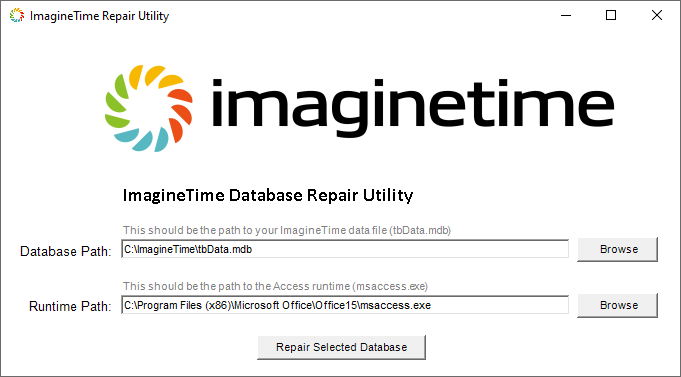
Error 3343: Unrecognized database format - This message occurs when logging in to ImagineTime, and indicates that the database file cannot be read. Generally, this can be fixed using the ImagineTime Database Repair Utility.
- Have all users exit ImagineTime.
- Open the Database Path using Windows Explorer. If there is a TBDATA.LDB file present, attempt to delete it. If the file cannot be deleted, a user or process is using the ImagineTime application. Once all users have exited and the TBDATA.LDB file is no longer present, continue.
- On the Windows Start menu, select ImagineTime Practice Management | Repair ImagineTime Database.
- Click Repair Selected Database.
- Click OK to any security warnings.
- When the process is complete, close the ImagineTime Database Repair Utility.
If you encounter an error during the repair process, contact Mango Support for additional assistance.
If this message recurs frequently, verify that you are using a high speed wired network. Wireless networks are not recommended due to performance and reliability issues. If the problem persists, contact your network administrator to troubleshoot your network connection.
- Error 3356: You attempted to open a database that is already open exclusively by user
- This message can occur when running the Repair & Compact utility if other users are still in ImagineTime.
- Have all users exit ImagineTime.
- Open the Database Path using Windows Explorer. If there is a TBDATA.LDB file present, attempt to delete it. If the file cannot be deleted, a user or process is using the ImagineTime application. Once all users have exited and the TBDATA.LDB file is no longer present, continue.
- Start ImagineTime and attempt to use the Repair & Compact utility again.
If the error persists, contact Mango Support for assistance.
Note: This error can also reported as Error 3260. For additional information, see Error 3260: Could not update; currently locked by user.
- Error 3709: The search key was not found in any record
- This message can occur in multiple locations, and indicates that the database file needs to be repaired.
- Have all users exit ImagineTime.
- On the Setup / Utilities ribbon, click General Utilities.
- On the Repair Utilities tab, click Repair/Compact Database & Exit.
- When the process completes, restart ImagineTime.
If this error persists, contact Mango Support for assistance.
- Error 3802: Error evaluating <value> CHECK constraint
- This message can occur when using the timer, if something is not properly configured (Client Setup, Work Code field, etc). Open the After-the-Fact time entry screen to verify the timer record was recorded. If not, verify that the options used (client, work code, etc) are properly configured and enter the time slip manually.
If this error persists, contact Mango Support for assistance.
Learn More
The following knowledge base articles contain additional information relating to errors in ImagineTime: